This tutorial describes how to create a poll, a quiz, a feedback request or an event registration on We Advocacy.
1. Open the polls dashboard
From the left-hand menu, open Communication, then Poll, Quiz, Feedback, .... You arrive at the dashboard listing all of your polls, with, for each one, its status (Scheduled, Published...), its category and, once published, its deliverability, view and participation metrics.
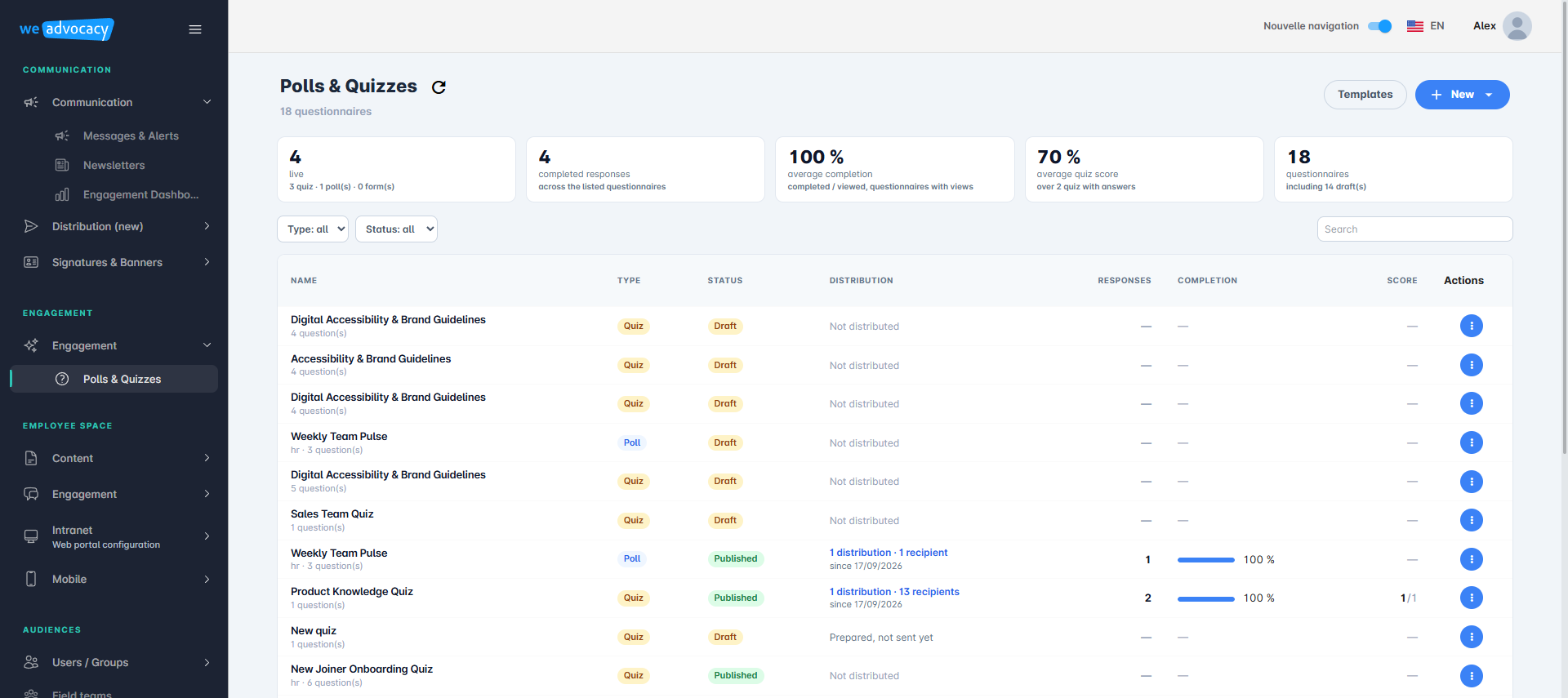
2. Create a new poll
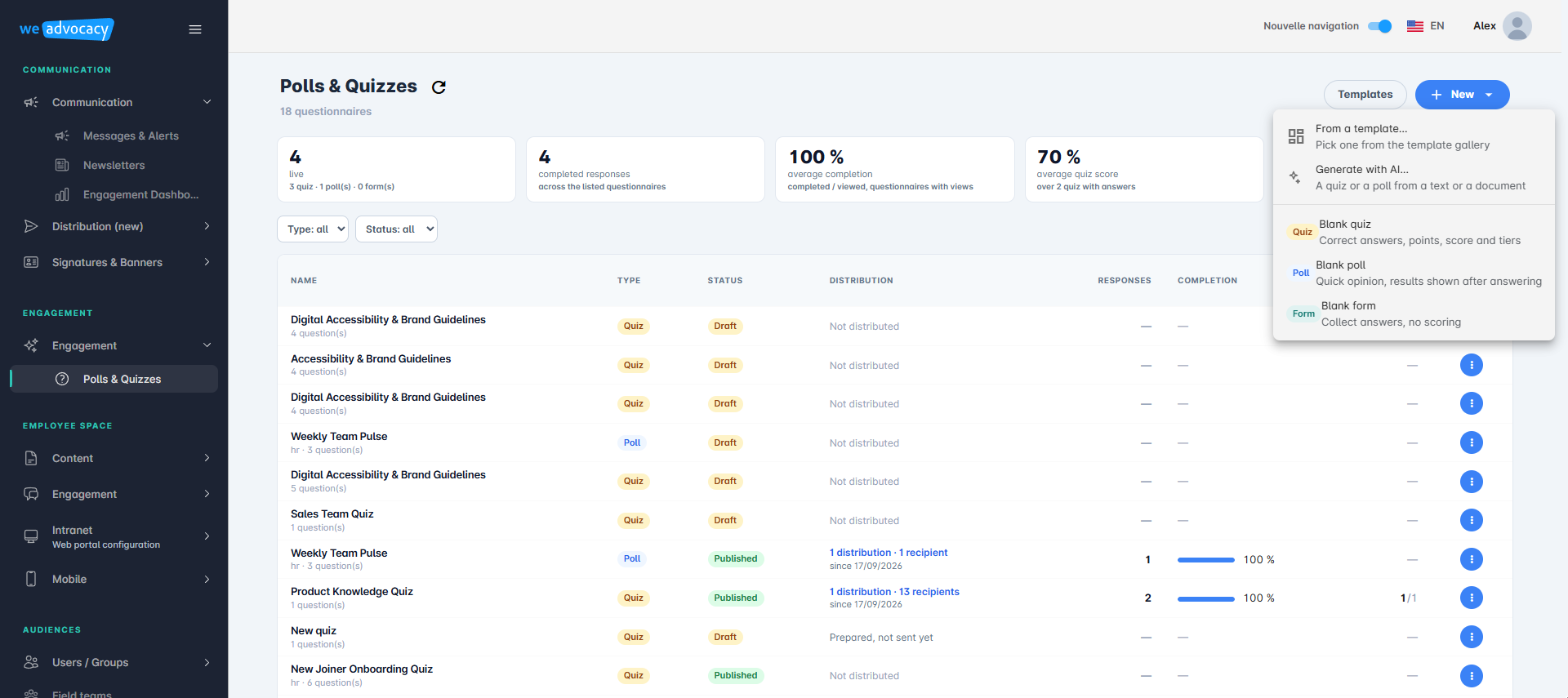
Click the + New button in the top right. The New poll panel opens: fill in the Name, a Category if needed, then choose the Type from four options:
- Poll;
- Quiz;
- Feedback;
- Event Registration.
Click Next to launch the wizard, organised into 6 steps.
3. Go through the creation wizard
Step 1/6 — Template
Start from an existing template related to your field (sorted by category in the left-hand menu) or start from a blank page. Click Next to move on to building the content.
Step 2/6 — Questions
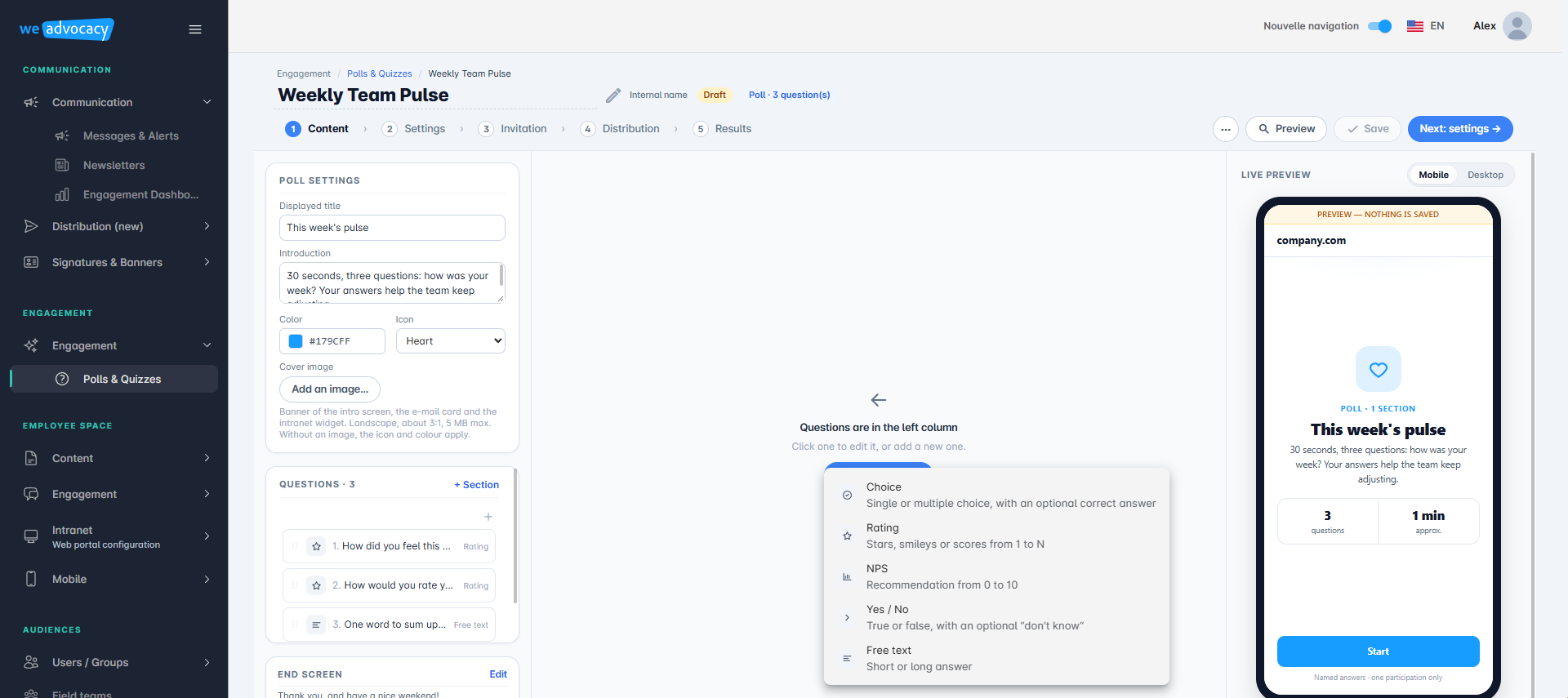
This is the heart of the tool. The Add a section or question button lets you structure your poll into sections and offers a wide range of question types:
- single-choice or multiple-choice question;
- short- or long-text answer question;
- rating question;
- star-rating question (5 or 10 stars);
- smiley question;
- yes/no or yes-no-don't know question;
- Quiz mode with correct answers.
For each question you add, replace the default text with your own wording (for example “What rating would you give the last newsletter?”) and toggle the Required option on or off as needed. The Import and Export buttons in the top right let you, respectively, load an existing set of questions or export your own.
Steps 3/6 to 6/6 — Channel, preview and schedule
These steps follow the same logic as creating a newsletter or message: selecting the distribution channel, previewing by channel (with the required fields to fill in depending on the channels chosen), then scheduling the publication (immediate send or scheduled date) and its validity period. Click Save to finalise.
4. Track the responses
Once published, the poll appears in the dashboard, with its results viewable as responses come in.
You now know how to create a poll, a quiz, a feedback request or an event registration.
Cet article a-t-il été utile ?
C'est super !
Merci pour votre commentaire
Désolé ! Nous n'avons pas pu vous être utile
Merci pour votre commentaire
Commentaires envoyés
Nous apprécions vos efforts et nous allons corriger l'article