This tutorial describes a questionnaire's Results step: the summary, the question-by-question detail and the list of respondents. Results fill in as responses arrive.
1. Open the results
Open the questionnaire from the Surveys & Quizzes list, then click step 5 Results. Three tabs are shown: Summary, Questions and Respondents. The number next to each tab shows the number of questions and respondents.
Until the first response arrives, the screen says so and offers a Go to distribution button.
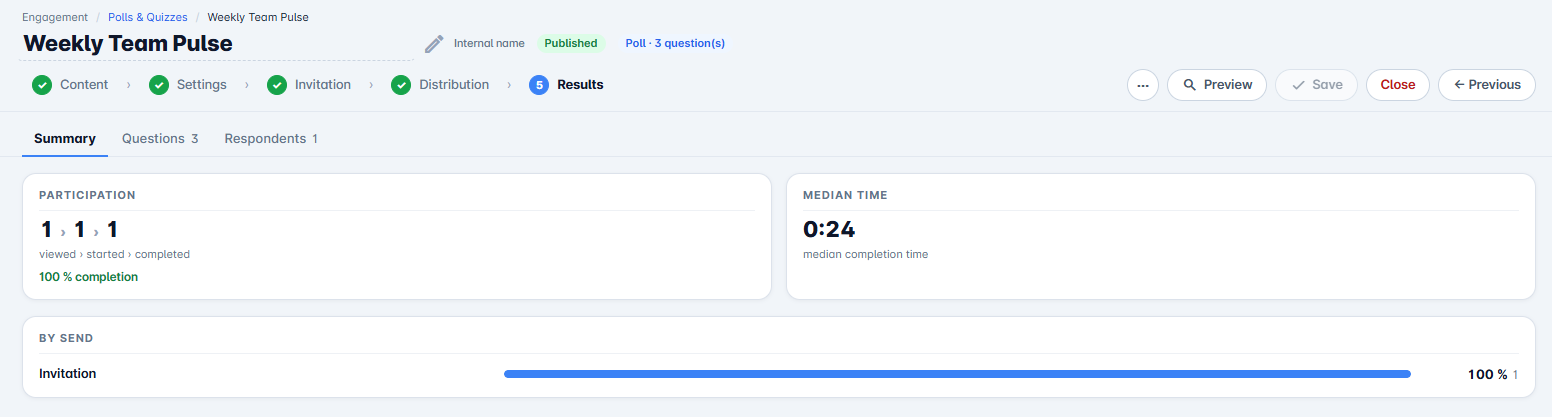
2. The Summary tab
The summary answers, at a glance, the questions you ask when opening the results:
- Participation: how many people viewed, started and finished the questionnaire, and the completion rate;
- Median time to complete.
For a quiz, the summary also shows, as soon as the first responses arrive:
- the average score and the matching tier;
- the number of questions below 50% success, to rework first;
- the breakdown by tier (Expert, Well done, To review);
- the breakdown by send: responses from the invitation and from each reminder;
- the list of questions, from least to best answered. When nobody found the correct answer, the most chosen answers are shown under the question.
3. The Questions tab
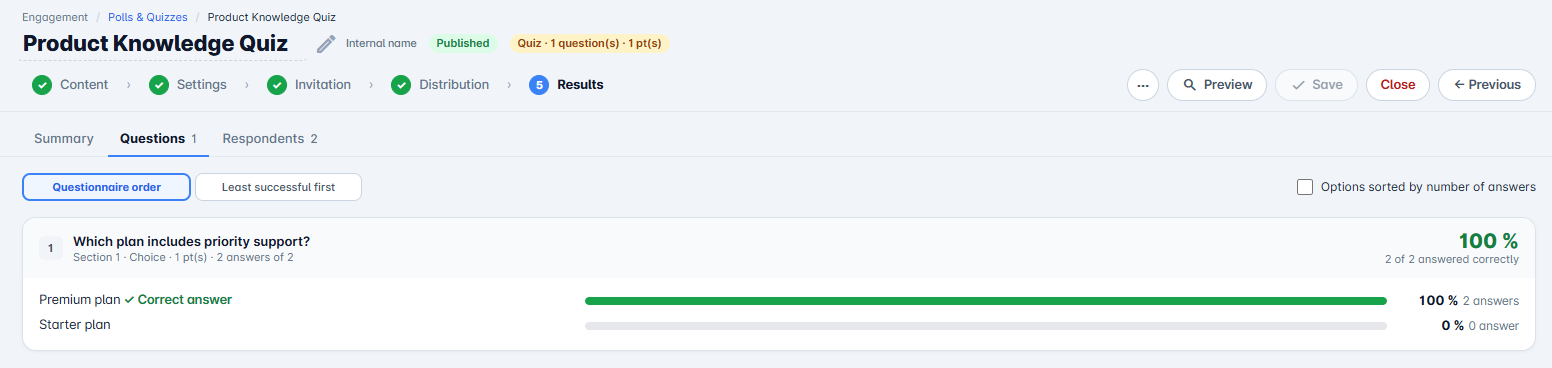
The Questions tab details each question: its section, its type, the number of responses received, then, for each option, the percentage and the number of responses. In a quiz, the correct answer is flagged and the question's success rate is shown alongside.
At the top of the tab:
- Questionnaire order or Least successful first (quiz) to choose the reading order;
- a section filter, when the questionnaire has several;
- Options sorted by number of responses, to rank options from most to least chosen.
4. The Respondents tab
The Respondents tab lists the people who answered, with their unit, the send that brought them (invitation or reminder) and their completion date. For a quiz, it also shows rank, score, time and tier reached.
- Search a name to find someone;
- filter by tier (quiz);
- sort By rank or Most recent;
- Export this list as CSV to work on responses in a spreadsheet.
If responses are anonymous, or if your platform is set to anonymous export, respondents appear as "Anonymous".
5. Track the distribution
To see who received the questionnaire and through which channel, use Distribution tracking in the questionnaire's actions menu, from the list.
You now know how to read the results of a quiz, survey or form.
Cet article a-t-il été utile ?
C'est super !
Merci pour votre commentaire
Désolé ! Nous n'avons pas pu vous être utile
Merci pour votre commentaire
Commentaires envoyés
Nous apprécions vos efforts et nous allons corriger l'article