This tutorial describes how to create a quiz on We Advocacy: questions, correct answers, points, timer, end screen and quiz-specific settings. The invitation and distribution are covered in the tutorial "Quizzes, surveys and forms: overview, invitation and distribution".
1. Create the quiz
From Engagement > Surveys & Quizzes, click + New, then choose Blank quiz or a quiz template, or use Generate with AI from the editor to draft questions from a text.
2. Content step — quiz settings
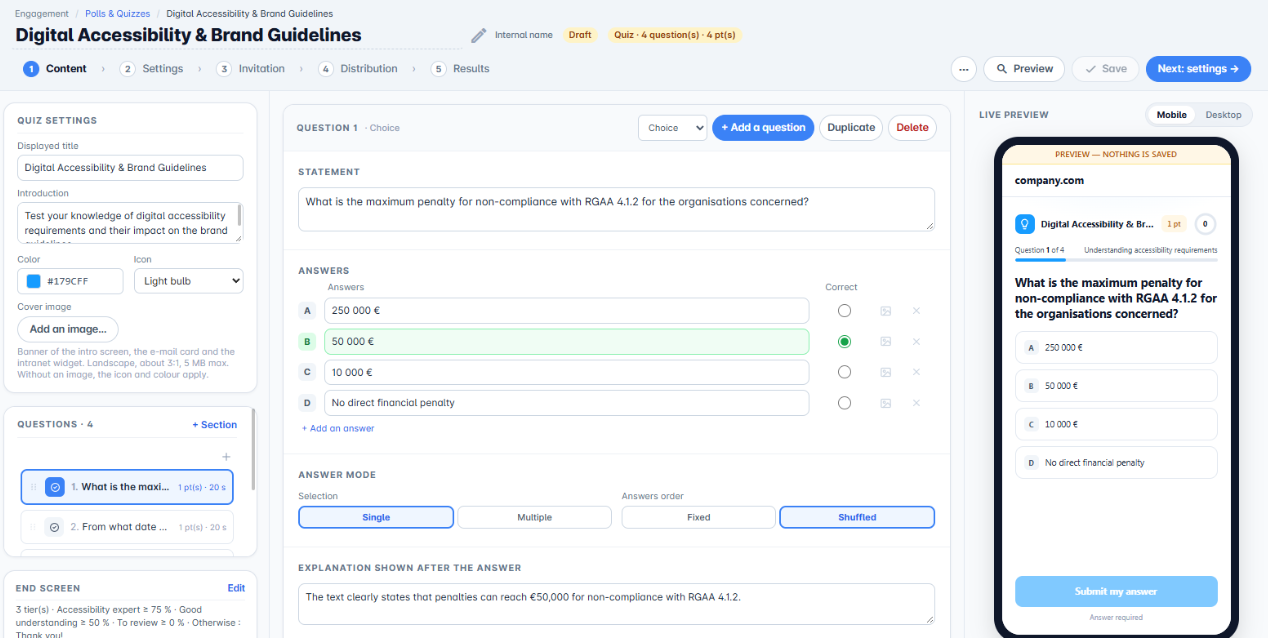
The Quiz settings card, at the top left, defines what participants see when they open the quiz:
- Displayed title and Introduction;
- Colour and Icon (shield, star, bubble, light bulb, trophy, heart or none);
- Cover image: the banner of the welcome screen, the email card and the intranet widget (landscape, about 3:1, 5 MB maximum). Without an image, the icon and colour are used.
Click the pencil icon next to the title to give it an internal name, separate from the title shown to participants.
3. Add sections and questions
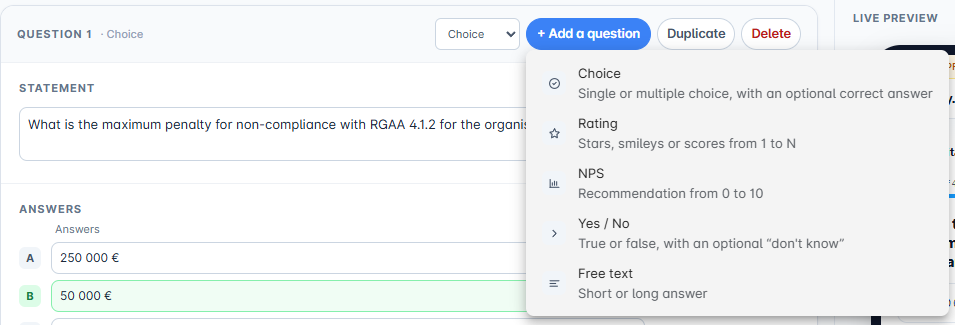
The Questions card lists your questions, grouped into sections. Click + Section to create a section, and Add a question to choose the question type:
- Choice: single or multiple choice, with a correct answer;
- Rating: stars, smileys or scores from 1 to N;
- NPS: recommendation from 0 to 10;
- Yes / No: true or false, with an optional "I don't know";
- Free text: short or long answer.
In a quiz, the Choice type is the one that carries the score. Drag and drop questions to reorder them.
4. Set up a question
Click a question in the list to edit it in the centre of the screen:
- Question: the question asked.
- Answers: type the options and tick the Correct column next to the right answer. Each option can have an image. Click + Add an answer to add more.
- Answer mode: Single or Multiple selection, and answer order Fixed or Shuffled.
- Explanation shown after the answer: the text participants see once they have submitted. This is what turns a quiz into a learning moment.
- Scoring and time: the question's Points (0, 1, 2, 3 or 5), the Timer (20-second default, none, 20 s or 45 s) and the Required answer option.
The Duplicate and Delete buttons apply to the question displayed. The Live preview, on the right, shows the question as participants will see it, on mobile or desktop.
5. Set the end screen and tiers
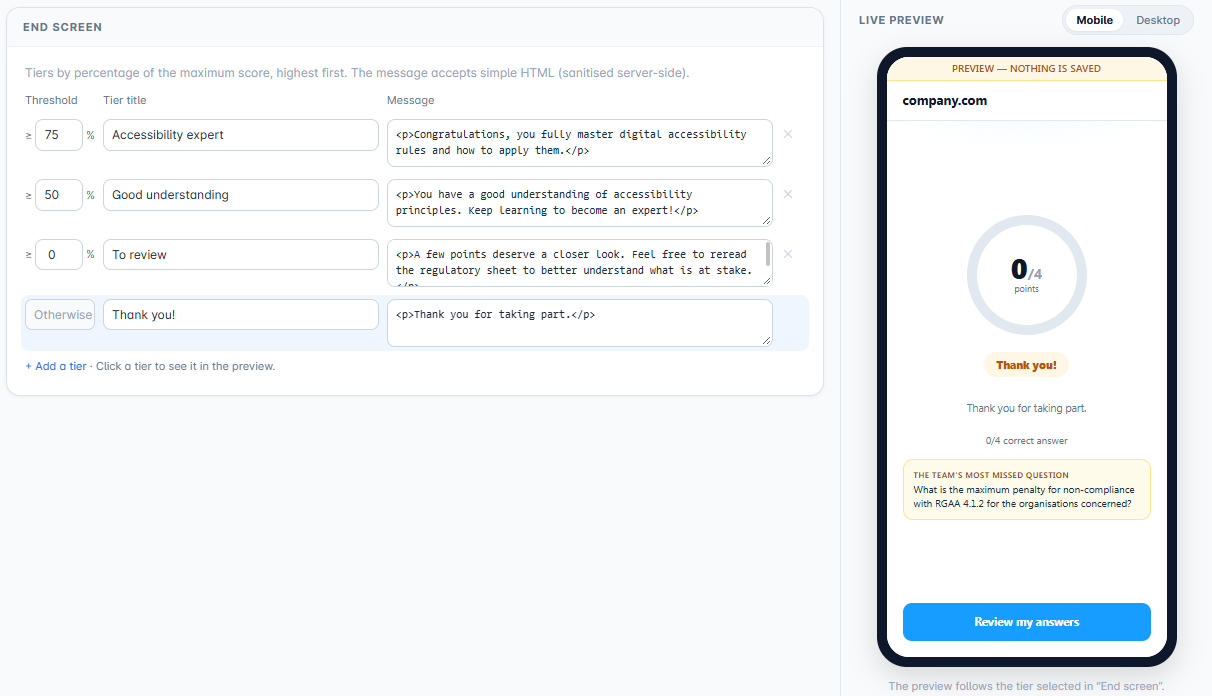
At the bottom of the left column, click Edit in the End screen card. In a quiz, the end screen is organised in tiers, based on the percentage of the maximum score achieved, from highest to lowest. For each tier, enter a threshold, a title and a message. By default, three tiers are suggested: Expert (75% and above), Well done (50% and above) and To review (0% and above). The Otherwise line sets the message shown in all other cases.
Click + Add a tier to create a new one, and click a tier to see it in the preview.
6. Settings step
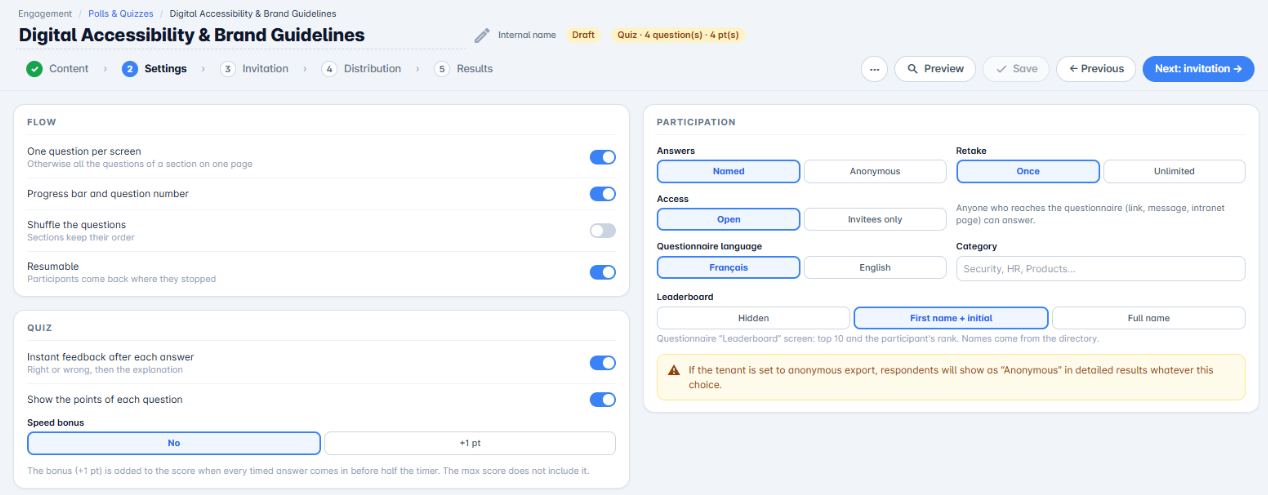
The Settings step has three cards.
Journey
- One question per screen (otherwise, all questions of a section on one page);
- Progress bar and question number;
- Shuffle question order (sections stay in order);
- Resume: participants return to where they left off.
Quiz
- Immediate feedback after each answer: right or wrong, then the explanation;
- Show points for each question;
- Speed bonus: +1 point added to the score if all timed answers arrive before half the timer. The maximum score does not include it.
Participation
- Responses: named or anonymous;
- Replay: once or unlimited;
- Access: open (anyone reaching the quiz through a link, a message or an intranet page can answer) or invitees only;
- Questionnaire language and Category;
- Leaderboard: the quiz "Leaderboard" screen shows the top 10 and the participant's rank. Choose Hidden, First name + initial or Full name.
If your platform is set to anonymous export, respondents appear as "Anonymous" in detailed results, whatever this setting.
7. Invite, distribute and follow up
Continue with the Invitation and Distribution steps, described in the overview tutorial, then follow scores in the Results step.
You now know how to create a quiz.
Cet article a-t-il été utile ?
C'est super !
Merci pour votre commentaire
Désolé ! Nous n'avons pas pu vous être utile
Merci pour votre commentaire
Commentaires envoyés
Nous apprécions vos efforts et nous allons corriger l'article