This tutorial walks through a concrete example — a network outage alert — of creating and distributing a message (a one-off alert or notification) on We Advocacy. It complements the general article “How to create and distribute a message or newsletter?”.
1. Open the messages dashboard
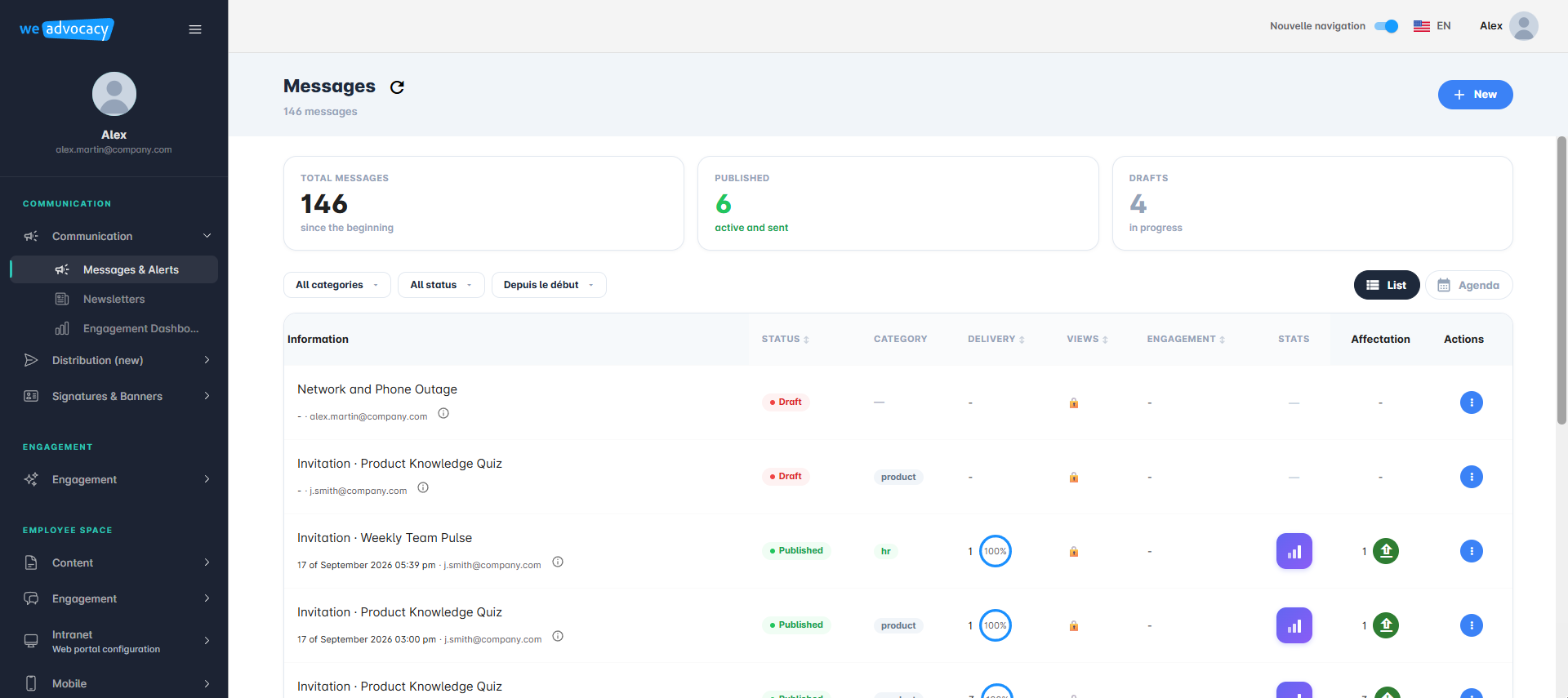
From the left-hand menu, open Communication, then Messages & Alerts. You arrive at the dashboard listing all of your messages (published, drafts, etc.) along with, for each one, its deliverability, view and engagement metrics.
2. Name the message
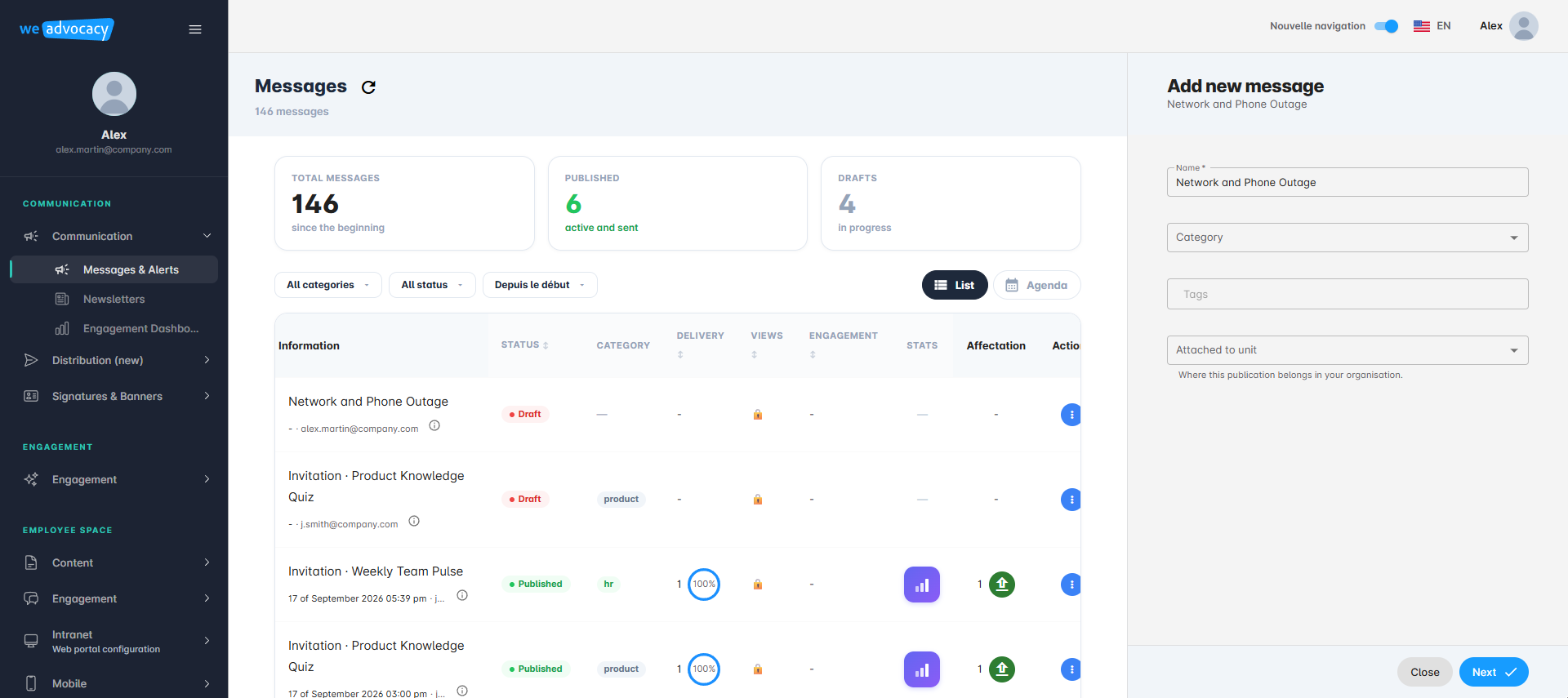
Click the + New button in the top right of the dashboard. The Add a new message side panel opens:
- fill in the Name field, for example “Network and Phone Outage”;
- complete the Category, Tags and Business Unit fields if needed.
Click Next to launch the creation wizard, organised into 5 steps.
3. Go through the creation wizard
Step 1/5 — Template
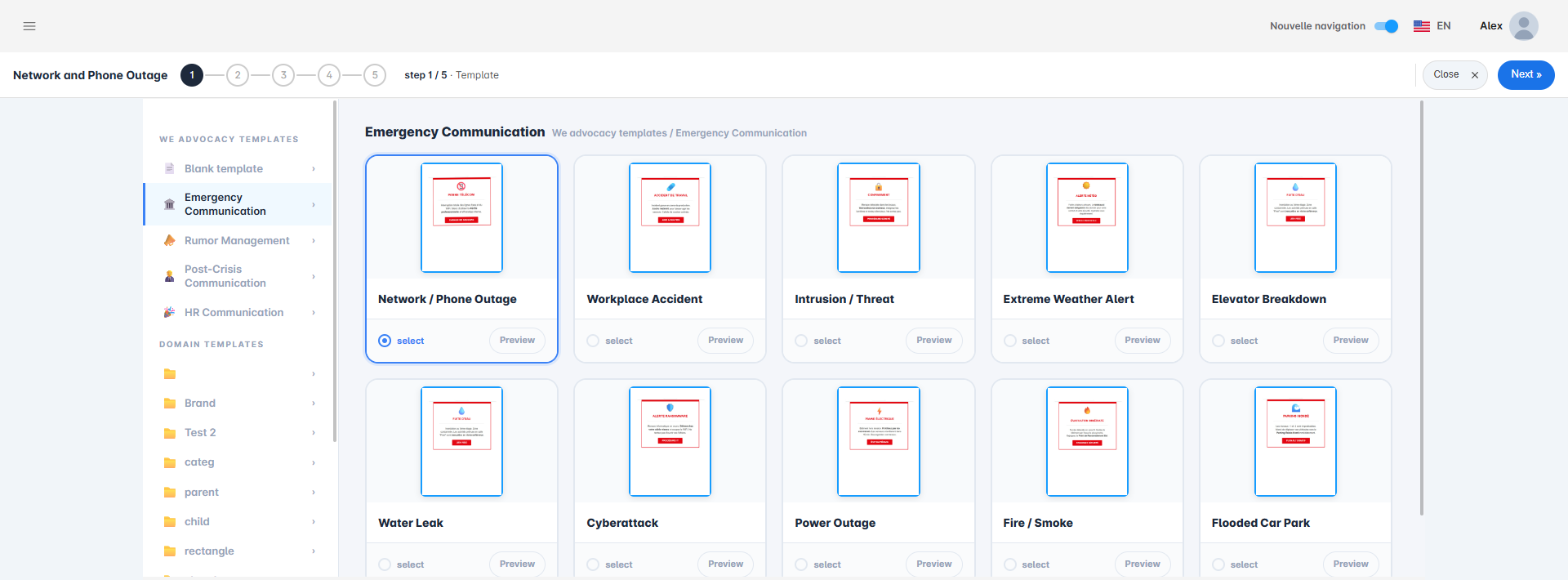
Unlike newsletters, messages natively offer alert- and crisis-management-oriented templates:
- Emergency Communication;
- Rumor Management;
- Post-Crisis Communication;
- HR Communication.
The Emergency Communication category offers, for example, the templates Network / Phone Outage, Workplace Accident, Intrusion / Threat, Cyberattack, Power Outage and Fire / Smoke. Select Network / Phone Outage with select, then click Next.
Step 2/5 — Design
This step opens the content editor. For messages, it is generally the classic editor that opens, with its Available Blocks / Elements panel on the left and its settings on the right (see the article “How the editor works” for details on getting started with it). Adapt the template text to your actual situation: nature of the incident, scope affected, instructions to follow.
Step 3/5 — Channel
For an alert of this type, prefer Select channel(s) (email and notification, or even SMS) over the default channel, in order to maximise the chances that the message is seen quickly by all affected employees.
Step 4/5 — Preview
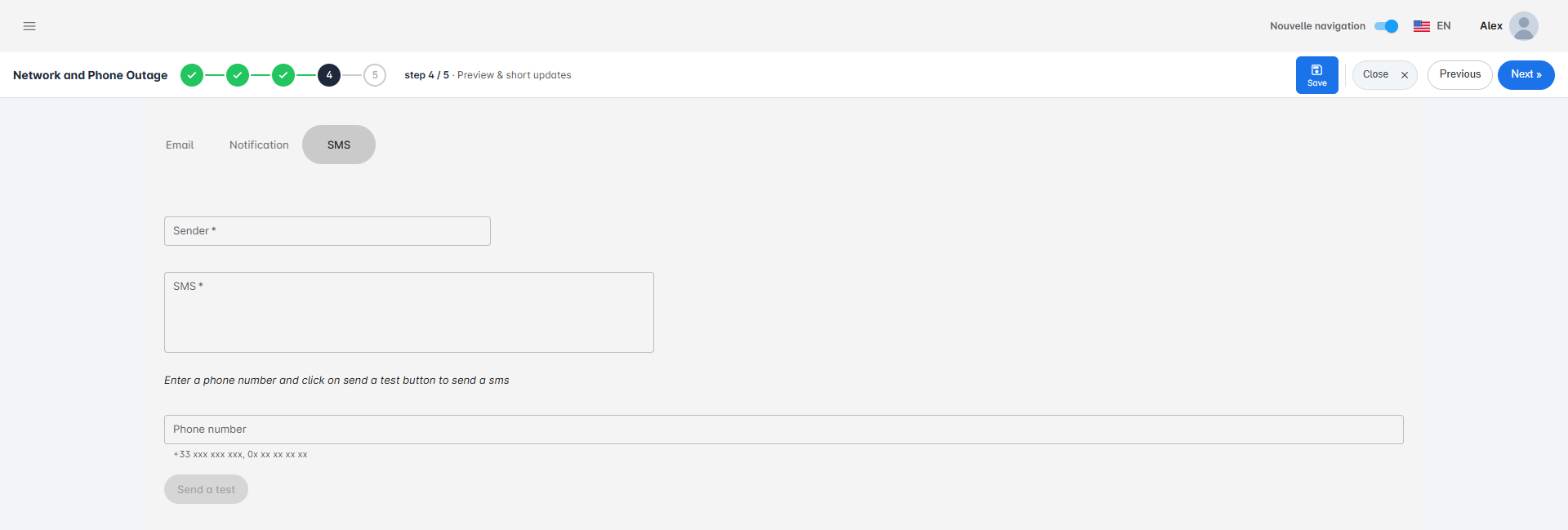
One tab appears per selected channel (Email, Notification, SMS, Mobile App). On each enabled tab, fields marked with an asterisk (Sender, Subject, SMS text, etc.) are required: make sure to fill them in on every tab you have selected, otherwise you will not be able to move on to the next step.
Step 5/5 — Schedule
This last step lets you publish immediately (Publish now) or schedule the send for a specific date. For an urgent alert, immediate sending is generally the rule. Click Save to finalise.
4. Assign the message to its recipients
The message now appears in the dashboard, ready to be assigned to its recipients. That step is described in detail in the article “How to create and distribute a message or newsletter?”.
You now know how to create and distribute a message, based on a concrete use case.
Cet article a-t-il été utile ?
C'est super !
Merci pour votre commentaire
Désolé ! Nous n'avons pas pu vous être utile
Merci pour votre commentaire
Commentaires envoyés
Nous apprécions vos efforts et nous allons corriger l'article