This tutorial walks through a concrete example of creating a newsletter from start to finish on We Advocacy: from choosing the template to scheduling the send. It complements the general article “How to create and distribute a message or newsletter?”, which details all the fields and options available at each step.
1. Open the newsletter dashboard
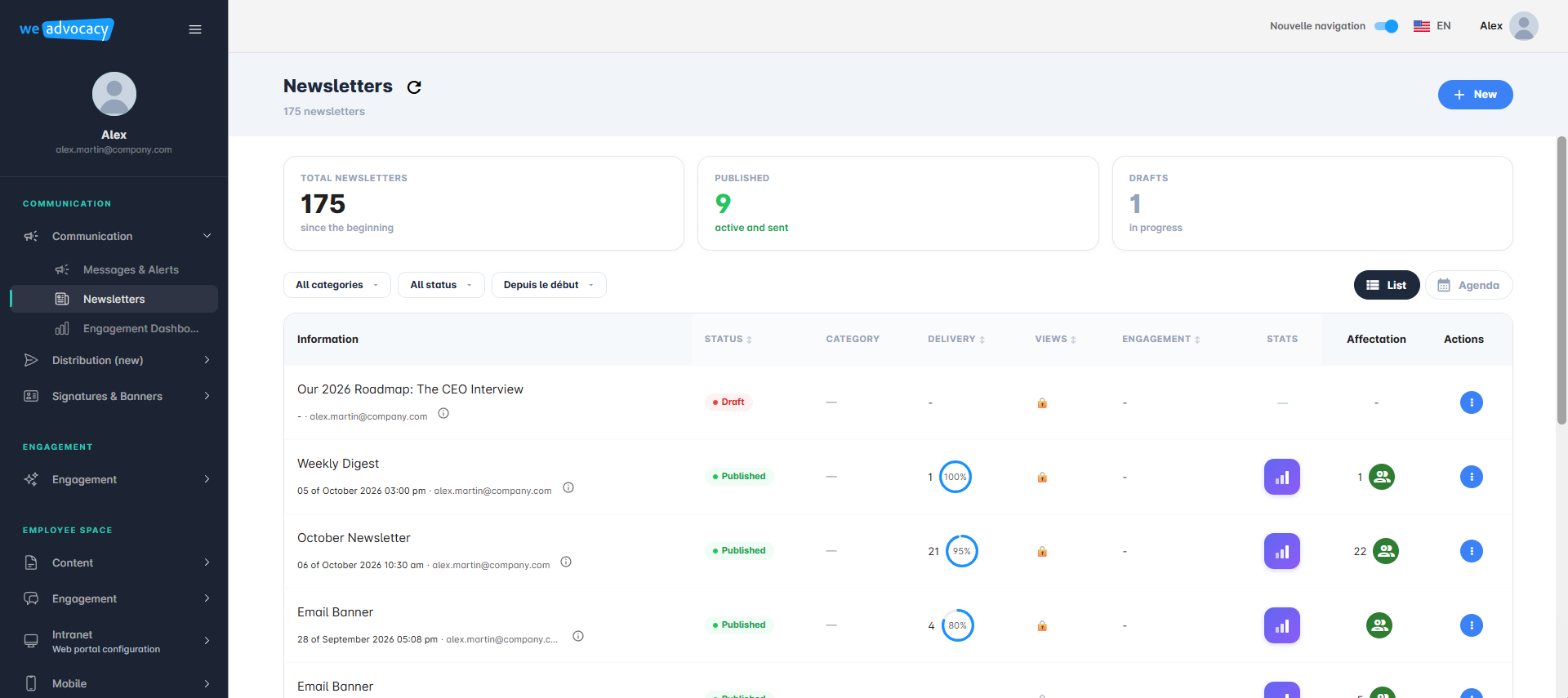
From the left-hand menu, open Communication, then Newsletters. You arrive at the dashboard listing all of your newsletters (published, drafts, etc.) along with, for each one, its deliverability, view and engagement metrics.
To illustrate the process, let's take the example of an institutional newsletter presenting the CEO's New Year wishes and roadmap for the year ahead.
2. Name the newsletter
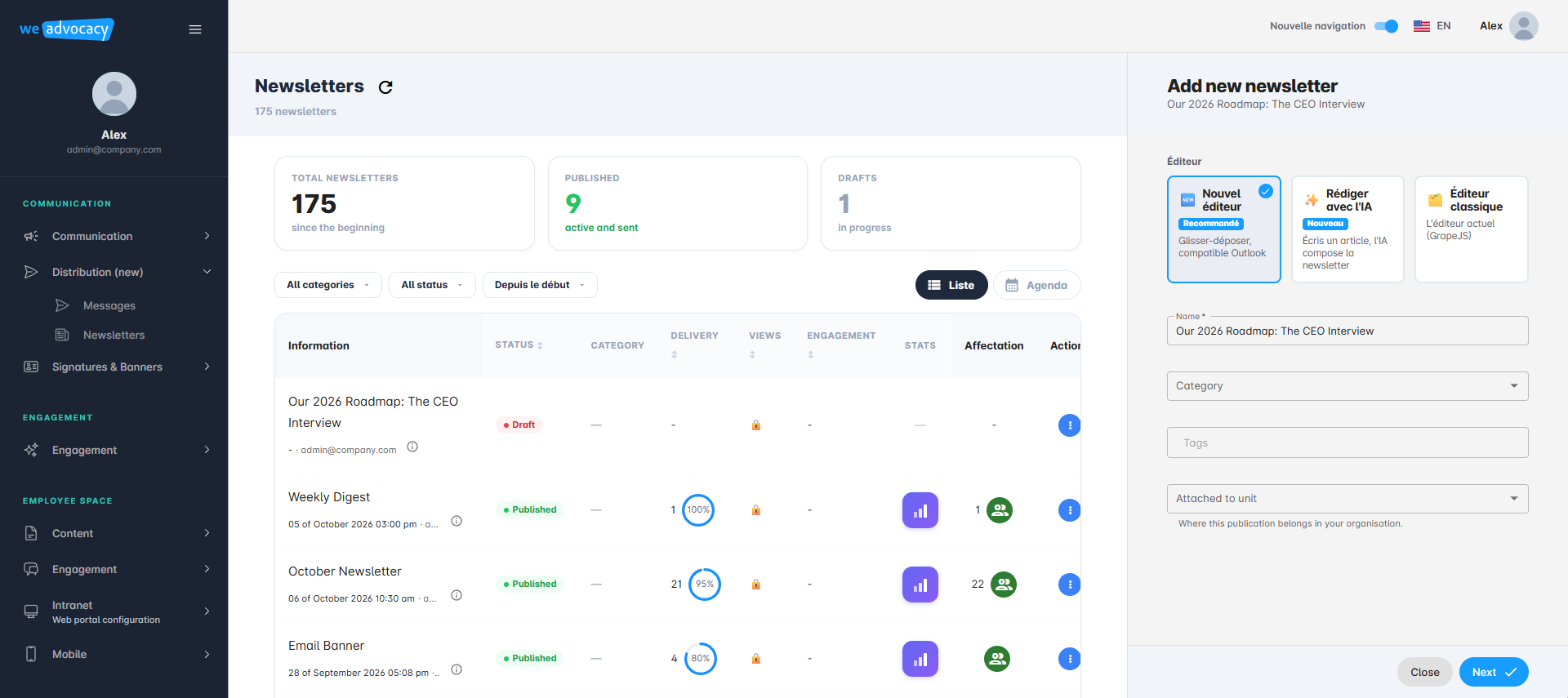
Click the + New button in the top right of the dashboard. A side panel opens:
- choose the editor — the New Editor is recommended (drag-and-drop, Outlook-compatible);
- fill in the Name field, for example “Our 2026 Roadmap: The CEO Interview”;
- complete the Category, Tags and Business Unit fields if needed.
Click Next to launch the creation wizard, organised into 5 steps.
3. Go through the creation wizard
Step 1/5 — Template
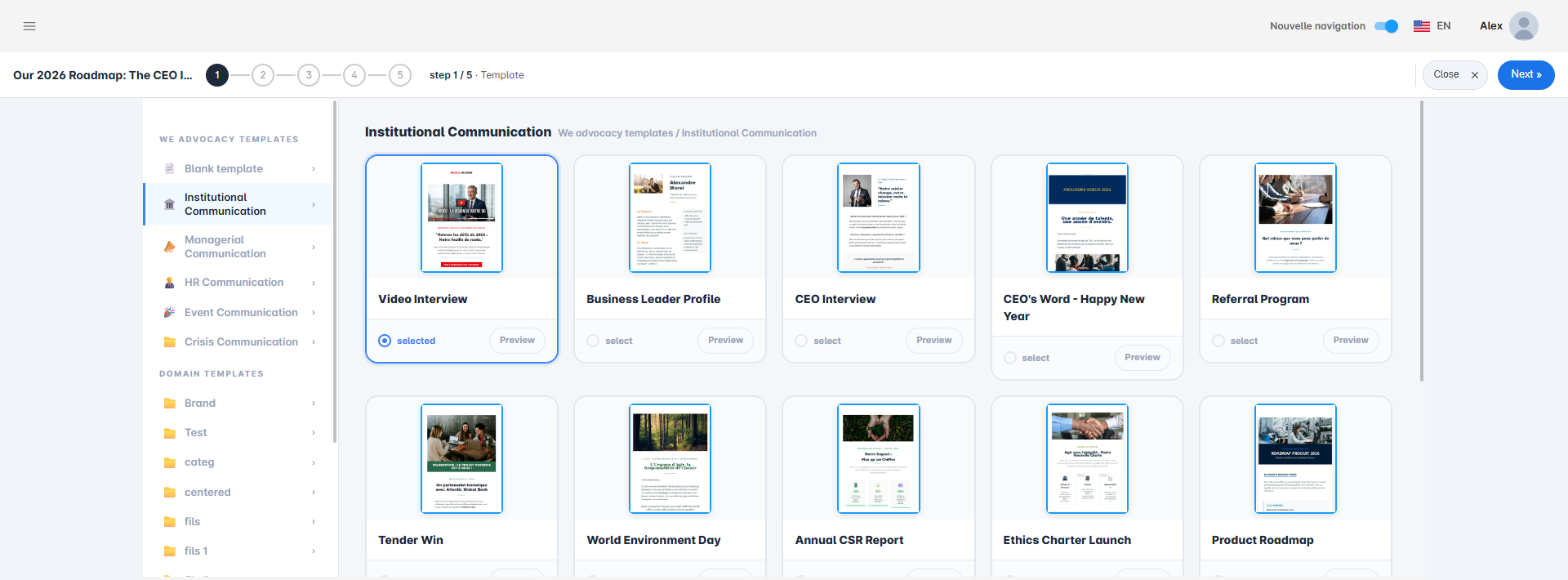
In the left-hand menu, the We Advocacy Templates section offers several ready-to-use categories:
- Institutional Communication;
- Managerial Communication;
- HR Communication;
- Event Communication;
- Crisis Communication.
For our example, select the Institutional Communication category, which offers templates such as Video Interview, CEO's Word - Happy New Year or Annual Results - Management Message. Click select under the template that best matches your content — here Video Interview — then click Next.
Step 2/5 — Design
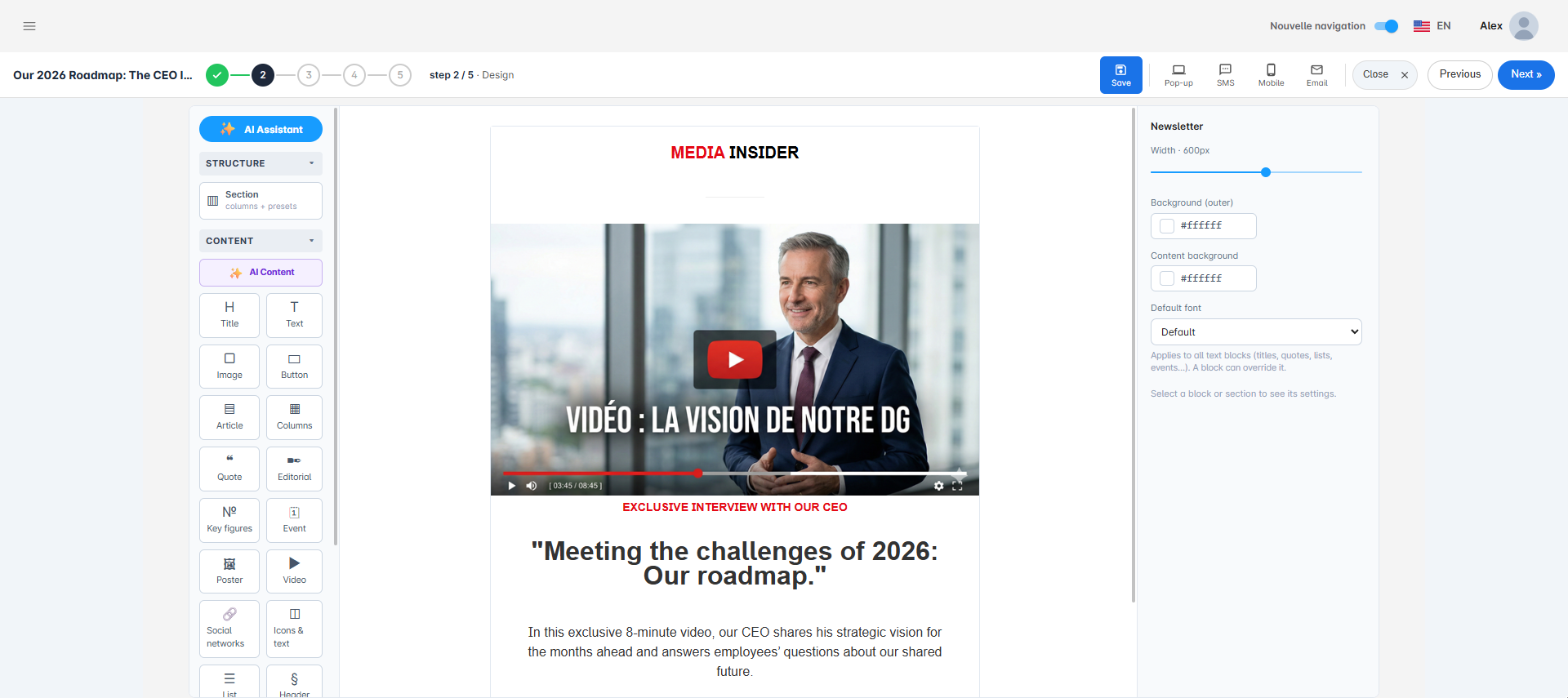
This step opens the content editor. The template is already pre-filled with a standard structure (video block, title, quote, text) that you simply need to adapt: replace the text, video and images with your own content from the block library on the left (Title, Text, Image, Button, Article, Video, etc.), and adjust the colours and width of the newsletter from the panel on the right.
Step 3/5 — Channel
Leave the Send using the user's default channel (recommended) option checked if you want each employee to receive the newsletter on their preferred channel. Choose Select channel(s) to force sending by email, notification and/or SMS.
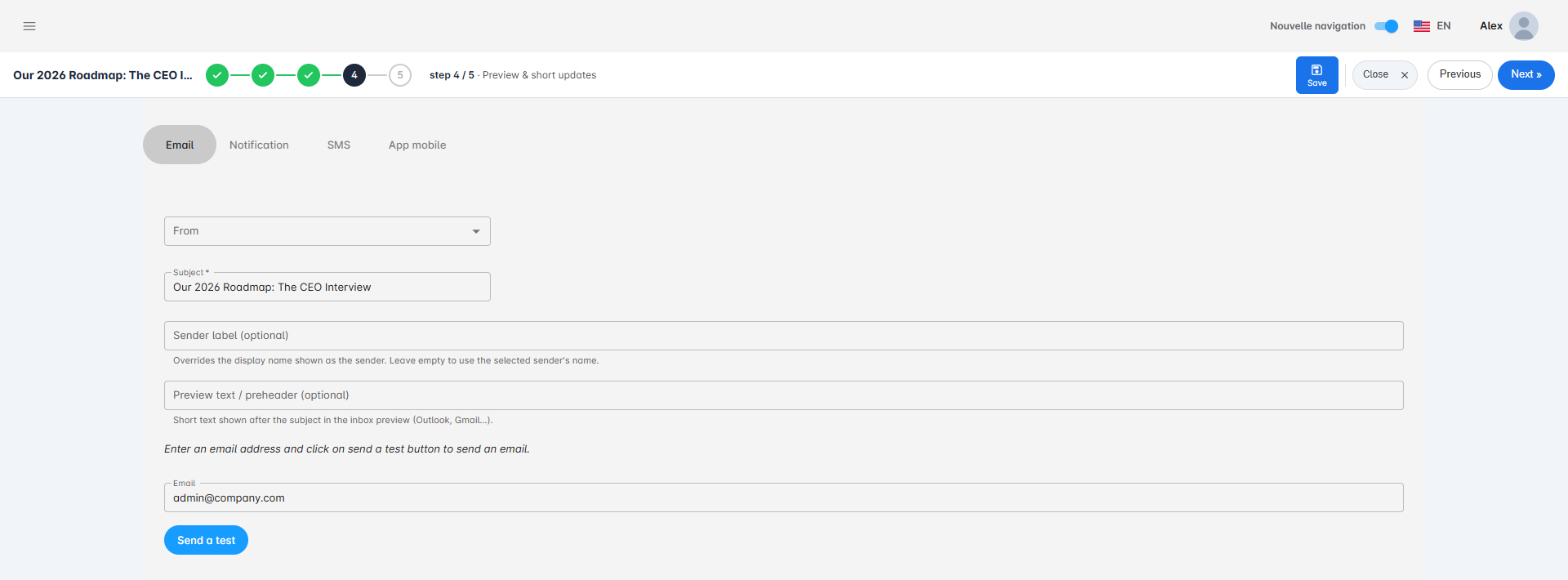
Step 4/5 — Preview
One tab appears per chosen channel (Email, Notification, SMS, Mobile App). For email, fill in the sender (From) and Subject fields, both required, as well as, if needed, a sender label and preview text. Enter an address in the Email field and click Send a test to receive a preview before distribution.
Step 5/5 — Schedule
This last step determines when the newsletter goes out: enable Publish now for immediate sending, or enter a specific Publication date. Finally, click Save (or Publish if immediate sending is enabled) to finalise.
Tip: for an institutional newsletter, schedule the send early in the morning or in the early afternoon — open rates are generally best at those times.
4. Assign the newsletter to its recipients
Your newsletter now appears in the dashboard, ready to be assigned to its recipients. That step is described in detail in the article “How to create and distribute a message or newsletter?”.
You now know how to build a newsletter from start to finish, based on a concrete use case.
Cet article a-t-il été utile ?
C'est super !
Merci pour votre commentaire
Désolé ! Nous n'avons pas pu vous être utile
Merci pour votre commentaire
Commentaires envoyés
Nous apprécions vos efforts et nous allons corriger l'article