This tutorial introduces the We Advocacy Surveys & Quizzes module: the three questionnaire types, the three ways to create one, and the two steps they all share — the invitation and the distribution.
1. Open the module
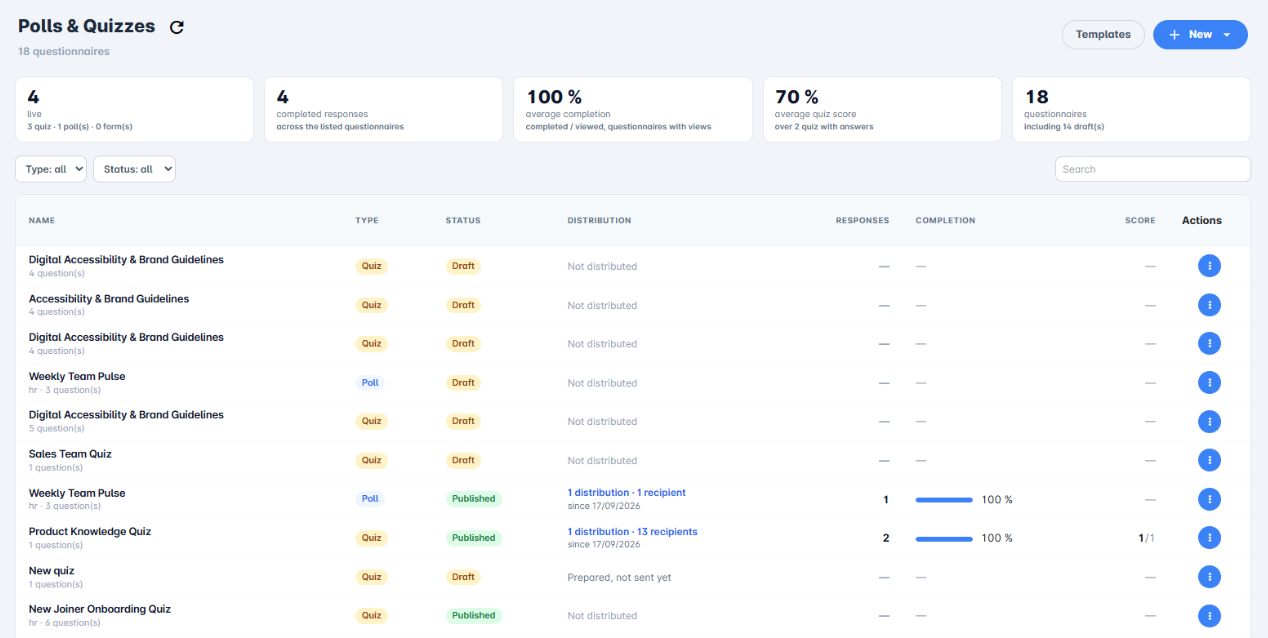
From the left-hand menu, open Engagement, then Surveys & Quizzes. You land on the list of your questionnaires.
At the top of the list, five indicators sum up your activity: questionnaires in progress, completed responses, average completion, average quiz score and total number of questionnaires. The Type and Status filters and the Search field help you find a questionnaire. For each one, the table shows its type, its status (Draft, Scheduled, Published, Closed, Archived), its distribution, its responses, its completion rate and, for a quiz, its average score.
2. Choose between a quiz, a survey and a form
| Type | What it is for | What sets it apart |
|---|---|---|
| Quiz | Test knowledge in a playful way: product launch, security, company culture, onboarding. | Correct answers, points, timer, score and result tiers (for example Expert, Well done, To review). |
| Survey | Collect quick feedback: team pulse, event satisfaction, eNPS. | No correct answer. Participants can see how others voted once they have answered. |
| Form | Collect information: registration, training evaluation, needs. | No score. By default, responses are only visible to administrators. |
All three types share the same editor and the same question types. What differs are the settings specific to each type and how results are read.
3. Create a questionnaire
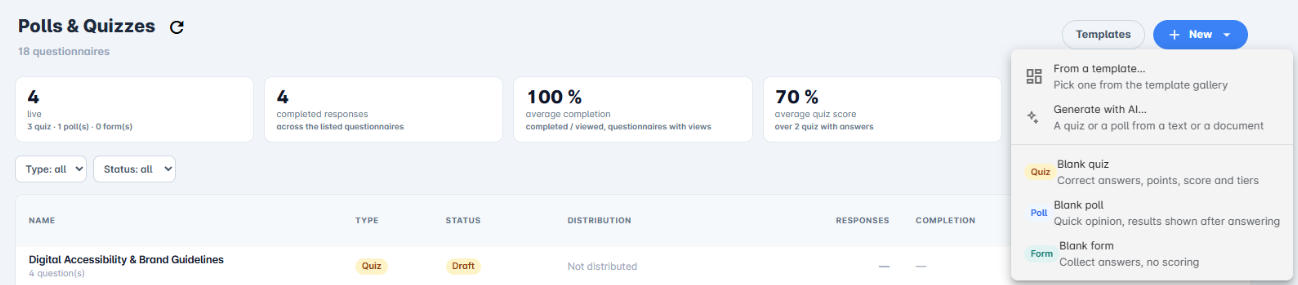
Click + New, at the top right of the list. Three ways to start are offered:
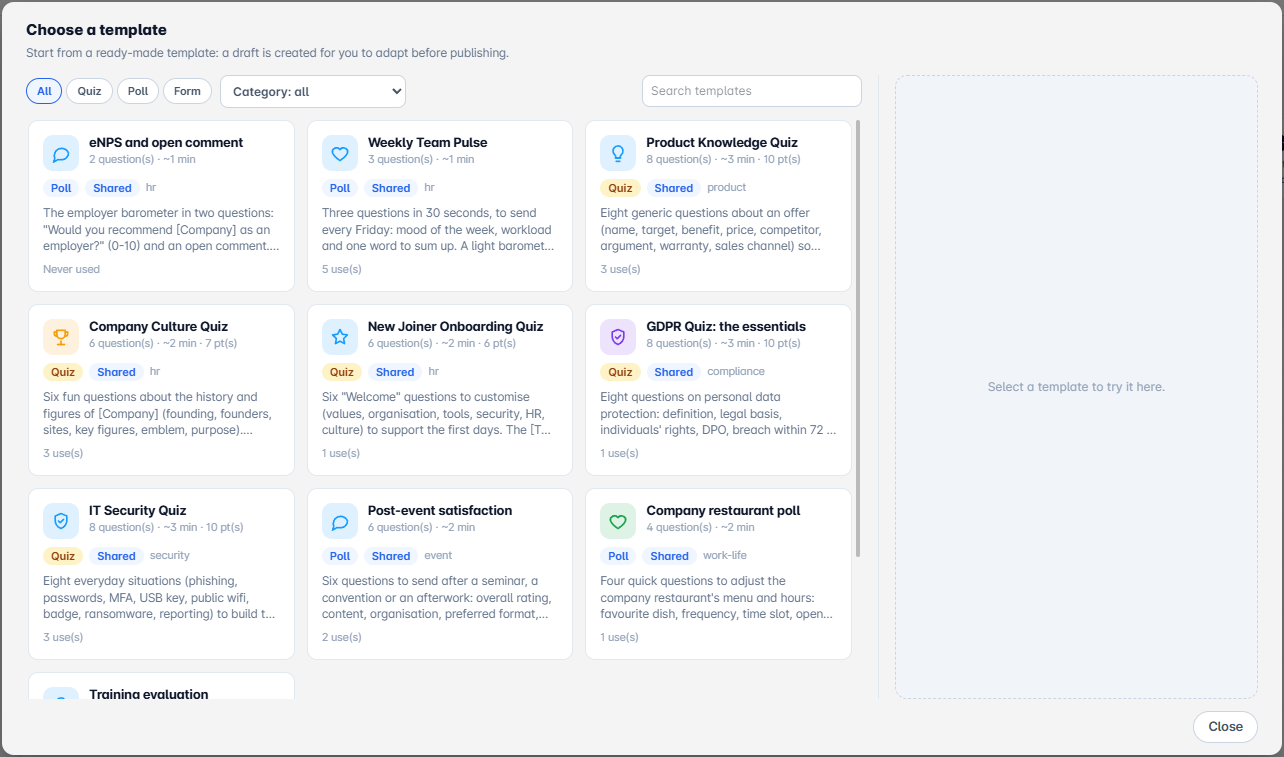
- From a template…: a gallery of ready-to-use questionnaires (eNPS, weekly pulse, IT security quiz, GDPR quiz, post-event satisfaction, training evaluation…). Filter by type or category, select a template to try it in the preview, then create it: a draft is created, to be adapted before publishing.
- Blank quiz, Blank survey or Blank form: an empty questionnaire of the chosen type.
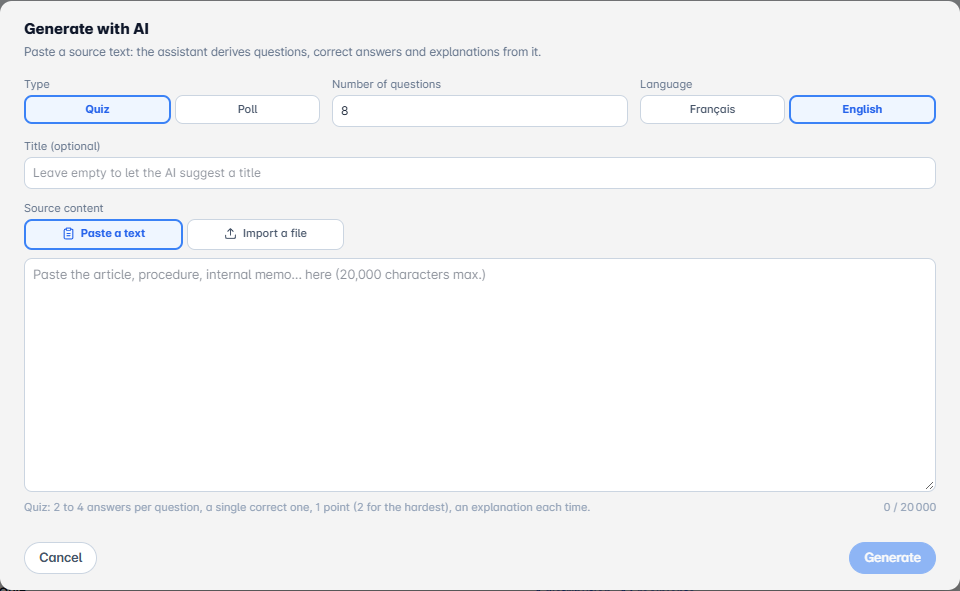
- Generate with AI: once in the editor, this button opens a window where you paste a source text (article, procedure, internal memo… up to 20,000 characters). Choose the type, the number of questions and the language, then click Generate: the assistant drafts the questions, correct answers and explanations. Always review the result before publishing.
4. The five-step creation path
The editor is organised in five steps, shown below the questionnaire title. The ← Previous and Next buttons move from one to the next.
- Content: displayed title, introduction, appearance, sections, questions and end screen.
- Settings: participant journey, type-specific options and participation rules.
- Invitation: the message announcing the questionnaire.
- Distribution: who receives it, when, and through which channel.
- Results: summary, question-by-question detail and list of respondents.
The Content and Settings steps are covered in the tutorial for each type. The Invitation and Distribution steps, shared by all three, are described below. Remember to click Save to keep your changes, and Publish when the questionnaire is ready.
5. Write the invitation
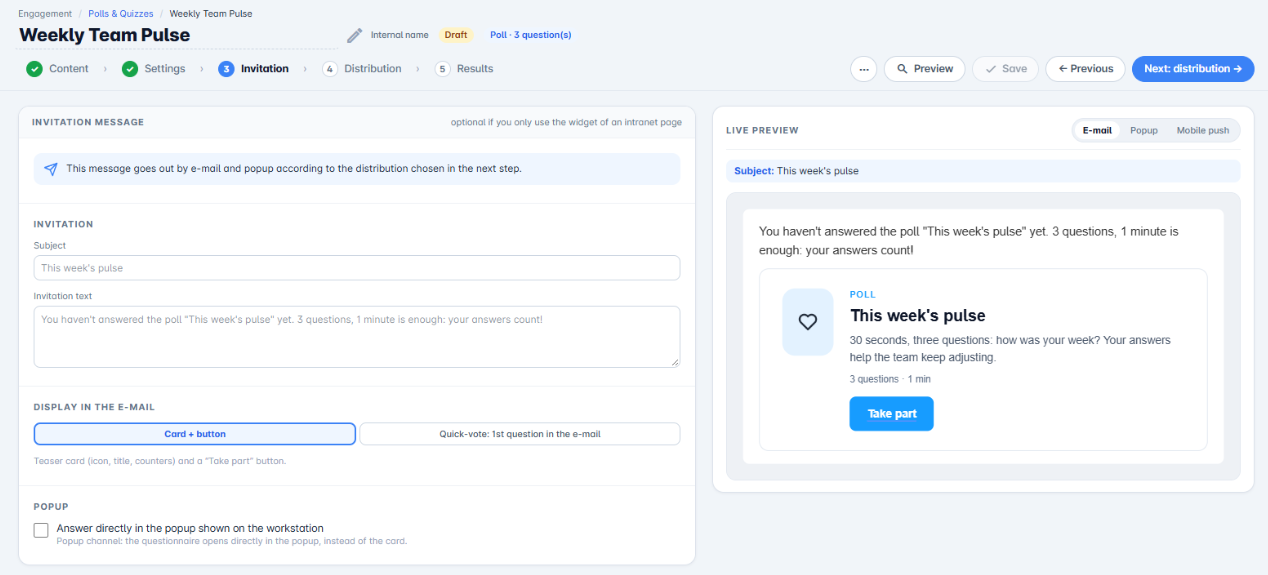
The Invitation step prepares the message sent by email and pop-up, depending on the distribution chosen at the next step. It is optional if you only use the widget on an intranet page.
- Subject and Invitation text: a default text is suggested; adapt it to your audience.
- Display in the email: Card + button (a card with the icon, title, number of questions and a "Take part" button) or Quick-vote (the first question directly in the email).
- Pop-up: tick Answer directly in the desktop pop-up so the questionnaire opens in the pop-up instead of the card.
The Live preview, on the right, shows how it renders in the email or the pop-up.
6. Distribute the questionnaire
The Distribution step runs in three stages. Click a stage header to open it; its summary stays visible once collapsed.
- Step 1 — Who receives it: Everyone, a Distribution scope, Groups and users, Lists or Manual entry. The number of people reached is shown alongside. Sending to everyone requires an extra confirmation when you send.
- Step 2 — When: Now or Later, and the questionnaire closing date.
- Step 3 — Where it lands: Each person's usual channel (recommended: email, pop-up or SMS according to each person's setting, one notification per person) or Choose channels (every ticked channel goes to everyone).
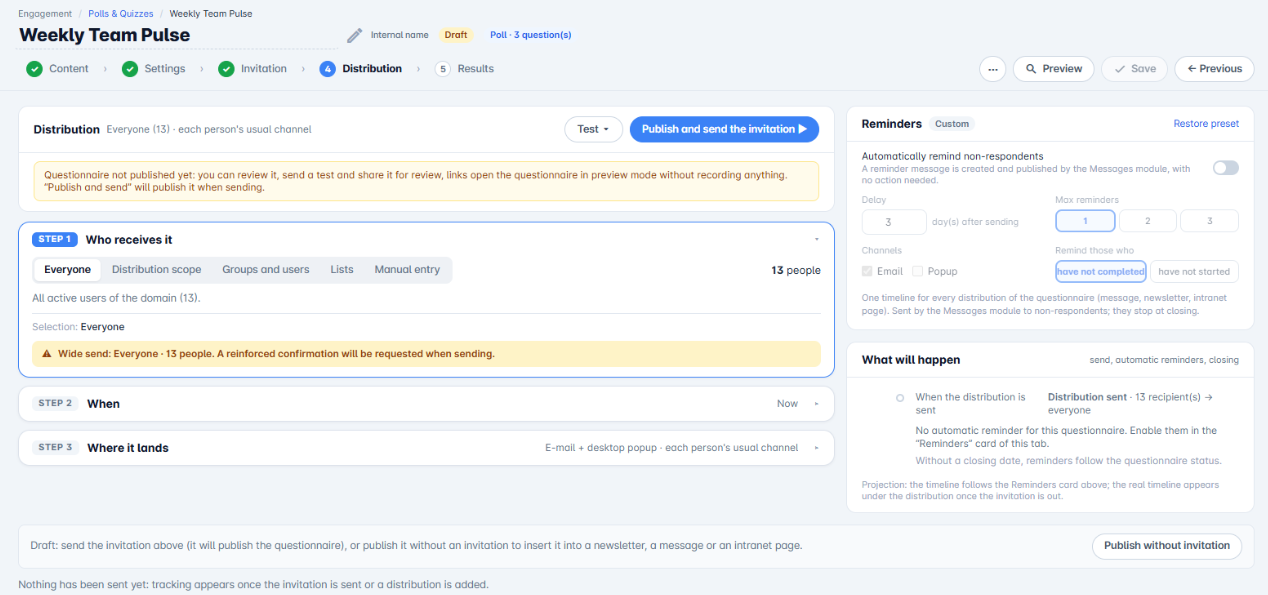
On the right, the Reminders card automatically reminds non-respondents: set the delay in days after sending, the maximum number of reminders (1 to 3), the channels, and the target (those who have not finished or those who have not started). Reminders stop when the questionnaire closes. The What will happen card shows the planned timeline: sending, reminders and closing.
Before sending, use Preview, Send a test or Share (review) to have the questionnaire checked. Until it is published, these links open the questionnaire in preview mode and nothing is recorded. Once published, click Send the invitation.
7. Manage your questionnaires
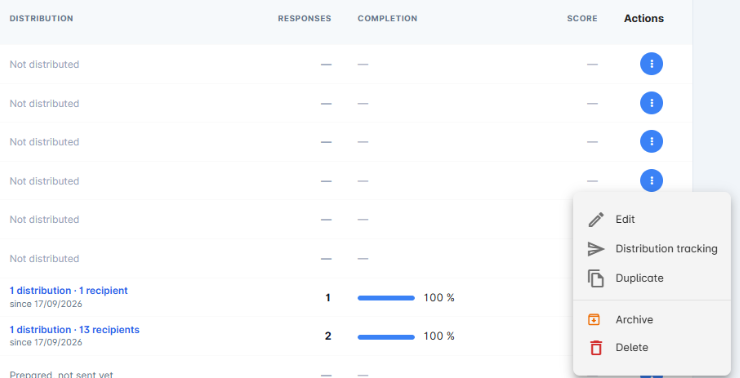
In the list, each row's actions button offers: Edit, Distribution tracking, Duplicate, Archive and Delete. A published questionnaire can be closed from its editor with the Close button.
You now know how the module works. To go further, read the tutorials on quizzes, surveys, forms and reading results.
Cet article a-t-il été utile ?
C'est super !
Merci pour votre commentaire
Désolé ! Nous n'avons pas pu vous être utile
Merci pour votre commentaire
Commentaires envoyés
Nous apprécions vos efforts et nous allons corriger l'article